

Auto Fixes for auto rotate android not working — Get it rotating again
When your Android screen stubbornly refuses to flip, the fix is often refreshingly simple. More often than not, it's a quick trip to your auto-rotate toggle in the Quick Settings panel or a simple reboot that gets things working again. These two steps are your first line of defense, clearing up the temporary software glitches that cause your screen to get stuck.
Your First Steps to Fix Screen Rotation
A screen that won't turn is one of those small problems that can bring your entire workflow to a halt. It’s incredibly frustrating. But before you start digging into complex diagnostics, let's walk through the initial checks that solve this issue for most people. These aren't deep technical fixes—they're the quick, effective actions designed to get you back in business immediately.
Check the Basics First
The most common culprit is also the easiest to fix: the auto-rotate feature might just be turned off. It happens to the best of us.
Swipe down from the top of your screen to pull down the Quick Settings panel. Look for an icon that resembles a phone rotating or sometimes a padlock. If it’s labeled "Portrait" or shows "Auto-rotate off," just tap it. That should re-enable screen rotation right away.
If that toggle was already on, the next universal fix for any weird phone behavior is a classic restart. Powering your phone completely off and then back on forces it to clear out temporary files and reset any background processes that might be interfering with your phone's sensors. It's the oldest trick in the book for a reason—it usually works.
Pro Tip: Never underestimate the power of a reboot. It forces the operating system to re-initialize the drivers for both the accelerometer and gyroscope. In many cases, this simple act clears the exact glitch that's causing your auto-rotate headache.
This simple decision tree shows the first two moves you should make whenever your screen rotation acts up.
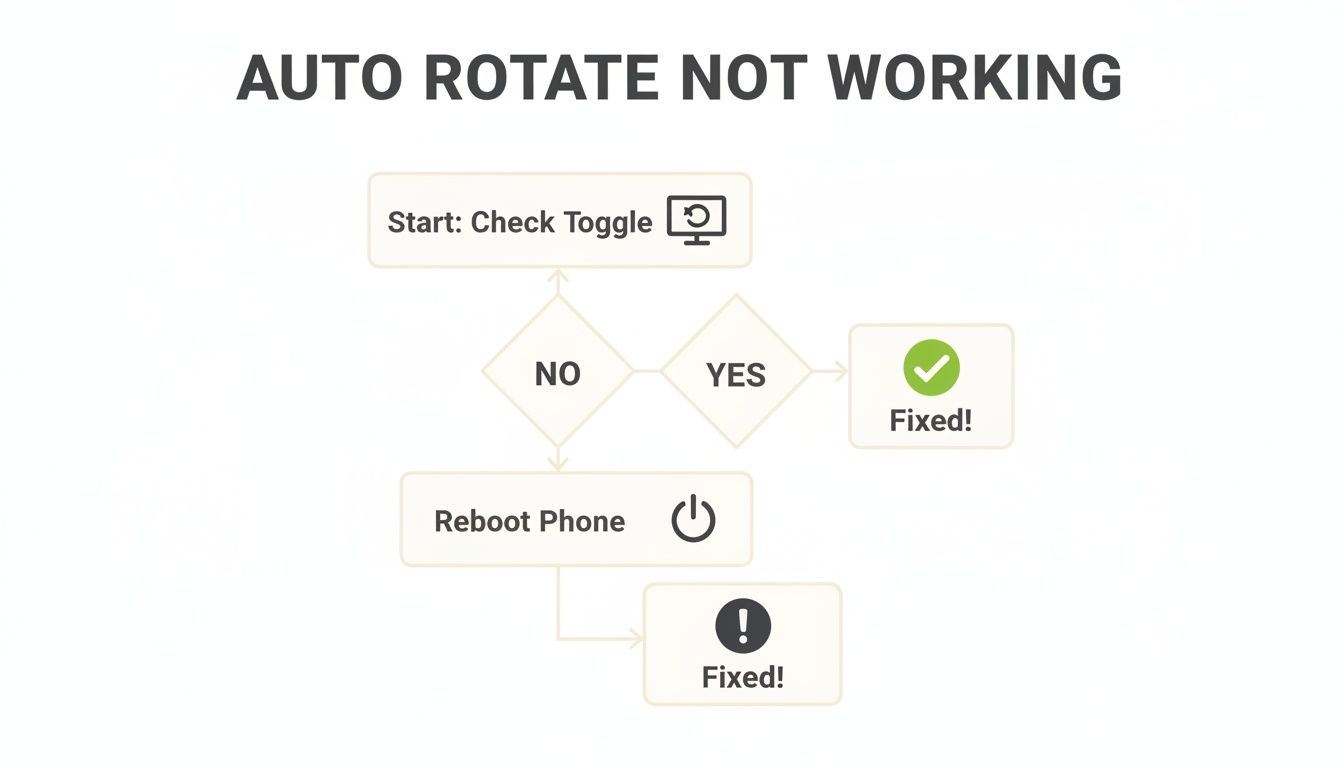
As you can see, the most direct path to a solution starts with checking the most obvious setting before moving on to a system-level refresh.
It's interesting just how often software is the root cause here. Based on user feedback and forum discussions, a surprising 40-60% of auto-rotate issues are tied to software conflicts—often popping up after an OS update—rather than an actual hardware sensor failure. This is exactly why starting with software troubleshooting is so critical. For a deeper dive, you can find more insights about Android auto-rotate issues to understand the common patterns.
Before we get into more advanced steps, here's a quick rundown of these initial, high-success-rate fixes.
Quick Fix Checklist for Auto-Rotate Problems
| Action to Take | Why It Works | Common Success Rate |
|---|---|---|
| Check the Quick Settings Toggle | The feature may have been accidentally disabled. It’s the simplest and most common oversight. | Very High (Often solves the issue in seconds) |
| Perform a Full Reboot | Clears temporary software glitches and forces sensor drivers to re-initialize. | High (Fixes many non-persistent bugs) |
| Remove and Re-attach Case | A poorly fitting case can sometimes interfere with the phone’s frame or sensors, especially on foldable devices. | Moderate (More common with bulky or magnetic cases) |
| Check App-Specific Settings | Some apps, like video players or game launchers, can override the system’s rotation settings. | Moderate (Solves issues isolated to one app) |
Following this checklist will resolve the problem for a large majority of users without needing to dive any deeper.
Finding Hidden App and System Conflicts
If the usual quick fixes didn't get your screen flipping again, we need to dig a little deeper. The problem might not be a system-wide bug at all. More often than not, a single app or a forgotten setting is the culprit, stubbornly overriding your phone’s normal behavior. I've seen this happen countless times when auto rotate android not working comes and goes without a clear reason.
Think about it—many apps are designed to take control of your screen's orientation. Video players force landscape mode for obvious reasons, and mobile games lock the view to keep you from accidentally flipping the screen during an intense session. This is totally normal, but it becomes a problem when an app gets buggy and forgets to release its lock after you’ve closed it.
Pinpointing a Problematic App
Let's play detective. The first question to ask is: when did the rotation problem start? If it was right after you installed a new app, you’ve found your prime suspect. Try uninstalling your most recent apps one by one to see if that solves it.
If you can't pinpoint a single new app, it's time to check the settings inside the apps you use most often.
- Media Players: Dive into the settings and look for anything labeled "Screen Orientation" or "Rotation Lock."
- Game Launchers: Many of these have a "Game Booster" or similar mode that can lock the screen orientation while you play.
- E-Reader Apps: To make reading more comfortable, these apps often include a setting to lock the view in portrait mode.
A buggy app update can be another sneaky cause. A while back, a Pocket Casts update (v7.92) created a mess where UI elements overlapped and, for many users, completely disabled screen rotation. The only solution was waiting for the next beta update (v7.93 r-c-2), which shows how an app-specific issue can easily be mistaken for a major system failure.
Uncovering Accessibility Overrides
Beyond individual apps, Android’s own Accessibility settings pack some powerful tools that can sometimes get in the way. These features are incredibly helpful, but they can also lock your screen orientation without you realizing it.
Head over to Settings > Accessibility on your phone. Take a close look at any services you have turned on, especially things that control the screen or user interaction. A power-user tool like "Tasker" might have an active profile that includes a command to lock the orientation. Try disabling any services you don't recognize or use, just to see if your rotation suddenly starts working again.
For those of us with foldable phones, the issue can get even more specific. Some apps just aren't built to handle the switch from the small cover screen to the large main display, causing them to freeze the orientation. This is happening less as developers adapt, but it's still a real problem with certain apps. On that note, making sure all your connections are solid is key to a good foldable experience; if you're hitting other snags, check out our guide to solving foldable phone Bluetooth connection problems. By methodically checking both your apps and accessibility settings, you can usually track down the source of the conflict.
If you've checked all the software and app settings with no luck, it's time to look at the hardware. Your phone uses two tiny but crucial components to understand its orientation: the accelerometer (which senses movement) and the gyroscope (which tracks tilt). When auto rotate android not working just won't go away, there's a good chance one of these sensors isn't sending the right signals.
You don't need a lab coat to figure this out. Most Android phones, especially from Samsung, have a hidden menu designed for exactly this kind of test. It’s the quickest way to know if you’re dealing with a hardware problem.
Using Built-In Diagnostic Tools
For anyone with a Samsung Galaxy device, getting into this test menu is usually pretty simple.
- Open your phone's Dialer app (the one you use to make calls).
- Type in the code
*#0*#(star, pound, zero, star, pound). - A grid of buttons should pop up immediately. Find the one that says "Sensor" and tap it.
This screen gives you a live look at what your phone's sensors are doing. We're interested in the Accelerometer and Gyroscope. Start tilting and turning your phone. You should see the X, Y, and Z values changing like crazy. If those numbers are stuck or the graph isn't moving, you’ve found your culprit.
Many modern smartphones now include these built-in sensor tests, empowering you to figure out if an issue is software or hardware before you even think about a warranty claim. To learn more, check out these insights on Android hardware diagnostics on alibaba.com.
What If Your Phone Has No Built-In Test?
Don't panic if that dialer code does nothing. Many brands like Google and Motorola skip this hidden menu. In that case, the Google Play Store is your best friend. There are plenty of apps designed to read and display sensor data in a way that's easy to understand.
Head to the Play Store and search for a reputable app like "CPU-Z" or "Sensors Multitool." After installing, open the app and find the "Sensors" section. Just like the built-in test, you'll see a list of all your phone's sensors with their real-time readings. A working accelerometer and gyroscope will show constantly shifting numbers as you move your phone around.
If you run these tests and get no response, the problem is almost certainly a hardware failure. A dead sensor can't be fixed by restarting your phone or even doing a factory reset. At this point, you can either grab a rotation control app to manually force the screen orientation or start looking for a professional repair shop. This step is critical—it saves you from hours of frustration trying software fixes for a physical problem.
Could Your Case or Accessories Be the Problem
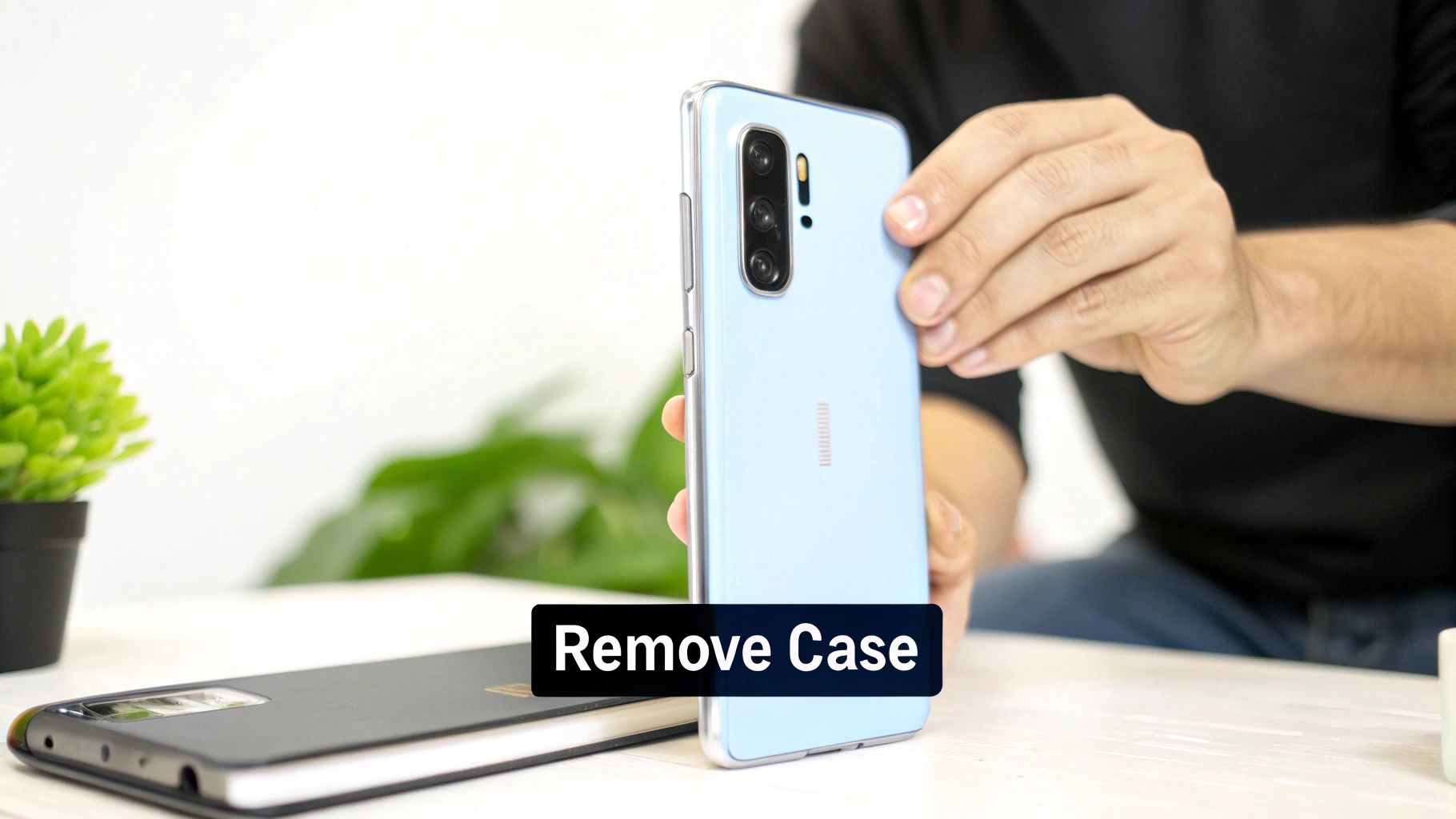
Before you start worrying about a major hardware failure or contemplating a factory reset, let's look at the most overlooked culprit: what's on the outside of your phone. It sounds almost too simple, but a poorly designed case or magnetic accessory is a surprisingly common reason the auto rotate android not working problem suddenly pops up.
These physical add-ons can directly interfere with the delicate sensors that tell your phone which way is up.
An overly tight or rigid case, for instance, can put just enough pressure on the phone’s frame to disrupt sensor readings. The fix is as easy as it sounds. Power your phone down, pop the case off, and turn it back on. If rotation suddenly works flawlessly, you’ve found the source of your headache.
The Hidden Danger of Magnets
Magnets are an even bigger, and frankly more common, problem for modern smartphones. Many cases, wallets, and car mounts use them for convenience, but those same magnets can wreak havoc on your phone’s internal compass (magnetometer) and gyroscope.
These sensors rely on detecting the Earth's subtle magnetic field to orient themselves. A strong magnet right next to them completely throws them off their game.
For example, a Galaxy Z Fold user might discover their screen is stuck in one orientation whenever it’s snapped onto a magnetic car mount. The phone's sensors are being totally overwhelmed by the mount’s magnetic field, causing them to stop sending the right data.
Real-World Scenario: We’ve seen this firsthand with flip-style wallet cases that have a weak magnetic clasp. The screen would rotate perfectly when the case was open but would freeze the second it was closed. That tiny magnet was sitting just close enough to the gyroscope to disrupt it.
If your case or any accessory you use has magnets, it should be the very first thing you check. This is an especially frequent issue with foldable phones, where sensor placement is far more complex. Choosing the right accessory is critical, and our guide to the best magnetic phone cases can help you find one that's designed to work with your phone, not against it.
Why Quality Accessories Matter
Picking a well-designed case is about more than just looks—it’s about protecting your phone's core functionality. High-quality cases are engineered to fit perfectly without putting any weird stress on the device's chassis or interfering with its internal components.
So, before you jump to the conclusion that you have a deep software or hardware issue, always perform this simple physical check. You might save yourself a lot of time and frustration.
Diving into Advanced Software Solutions
If the quick fixes haven’t managed to get your screen rotating again, it's time to dig a little deeper into the software. These next steps are designed to root out more stubborn conflicts hiding within the Android operating system itself, going beyond simple settings or app-specific glitches.
When you're still dealing with auto rotate android not working, these diagnostics can often provide a clear answer.
The single most effective tool in your diagnostic kit is Safe Mode. When you boot your phone into this mode, it temporarily shuts down every third-party app you've ever installed. This gives you a clean slate, letting you test your phone's core functions—like auto-rotate—without anything getting in the way.
Using Safe Mode to Isolate the Cause
Getting into Safe Mode is usually pretty straightforward. Just press and hold your power button, then long-press the "Power off" icon on your screen. You should see a prompt to "Reboot to safe mode." Once it restarts, you'll see "Safe mode" written somewhere on your screen.
Now, give the auto-rotate feature a try. Tilt your phone. If the screen rotates perfectly, you've found your problem: a third-party app is causing the trouble.
The next move is simple. Restart your phone to get out of Safe Mode and start uninstalling your most recently downloaded or updated apps one by one. After each uninstall, check if rotation is working again. Sooner or later, you'll find the app that was causing the headache.
Wiping the Cache Partition
What if Safe Mode didn't fix it? The problem could be corrupted temporary system files. Wiping the cache partition is an excellent next step. It’s like a spring cleaning for your phone's operating system, clearing out junk data without touching a single one of your personal files, photos, or apps.
To do this, you’ll need to boot into Recovery Mode. The button combination varies by device but often involves holding a mix of the power and volume buttons while the phone is off. Once you're in the Recovery Mode menu, use the volume buttons to find and select the "Wipe cache partition" option. The whole process is surprisingly fast and can fix all sorts of weird, unexplainable glitches.
Important Takeaway: Wiping the cache partition is completely different from a factory reset. It does not delete your data. Think of it as clearing your browser's cache, but for the entire operating system.
The Final Step: A Factory Reset
If you've tried everything else and rotation is still stuck, the factory reset is your last resort. This is the nuclear option—it will erase everything on your device and return it to the exact state it was in when you first took it out of the box. Only consider this after you've exhausted all other troubleshooting steps and are reasonably sure it isn't a hardware failure.
Before you even think about tapping that reset button, back everything up.
- Backup photos and videos to Google Photos or your computer.
- Sync your contacts with your Google account.
- Use your phone's official backup tool (like Samsung Smart Switch) to create a complete backup.
A factory reset is a powerful solution, but it means starting fresh. On the bright side, this can also be a great chance to build better habits. For some excellent advice on starting over with your device’s power settings, take a look at our guide on how to extend phone battery life.
Diving Deeper: Common Questions About Auto-Rotate Problems
Even after running through the usual troubleshooting steps, you might have some lingering questions. That's completely normal. Certain situations have very specific causes, so let's tackle some of the most frequent follow-up questions I hear about those tricky rotation issues.
"My Auto-Rotate Stopped Working Right After a Software Update. What Happened?"
This is probably the most common complaint I see. When you install a major Android update, you're essentially getting a new operating system, and sometimes the new software doesn't play nicely with your phone's existing hardware drivers right away.
An update can easily throw off the delicate calibration of the accelerometer and gyroscope, causing them to stop communicating correctly with the OS. Think of it as a software conflict, not a hardware failure. The good news is that it's usually an easy fix. A simple restart right after the update can force the system to re-initialize everything. If that doesn't do the trick, clearing the system cache is a great next step to get rid of old, conflicting files from the previous Android version.
"Can a Cracked Screen Actually Stop My Phone From Rotating?"
Absolutely. While the glass itself doesn't control rotation, the impact that cracks your screen can cause all sorts of internal havoc. The same drop that shatters the display can easily damage the tiny, super-sensitive sensors on the phone's main logic board—specifically the accelerometer and gyroscope.
These components are fragile. If your auto-rotate feature died the exact moment your phone hit the pavement, it's a huge red flag for a hardware problem. The physical shock likely broke the sensors or knocked their connections loose. In this situation, no amount of software tweaking will help, and you'll need to look into a professional repair to get things working again.
"My Phone Rotates in Some Apps, but My Home Screen is Stuck. Why?"
If rotation works perfectly fine in YouTube but your main screen stays locked in portrait mode, you can breathe a sigh of relief—your sensors are working just fine. This is almost always a simple software setting issue, and the culprit is your home screen launcher.
Many Android launchers, including the default ones on Samsung and Google Pixel phones, have a setting that deliberately locks the home screen to portrait mode. The idea is to prevent it from accidentally flipping around while you're just navigating your device.
The fix is usually straightforward: long-press on an empty area of your home screen, find "Settings" or "Home screen settings," and look for an option like "Allow home screen rotation" or "Rotate to landscape mode." Just toggle that on, and you should be good to go.
"Is There an App That Can Force My Screen to Rotate?"
Yes, and they can be a real lifesaver, especially if you know you're dealing with a hardware issue but aren't ready to pay for a repair. It's important to understand that an app can't magically fix a broken sensor, but it can give you a fantastic workaround.
Apps like "Rotation Control" or "Screen Orientation Control" from the Google Play Store add a small control panel to your notification area. From there, you can manually force your screen into any orientation you want—portrait, landscape, even reverse portrait—with just one tap. It completely bypasses the phone's broken sensors, putting you back in command of the display. This is the perfect temporary fix when the auto rotate android not working problem is due to a physical defect you can't fix right away.
At FoldifyCase, we know that a top-tier case is your best defense against the kind of drops that damage delicate sensors. Protect your foldable phone with our precision-engineered cases, designed for maximum durability and perfect functionality. Check out our collection at https://www.foldifycase.com.