

Solve Your Foldable Phone's Bluetooth Connection Problems for Good
When your favorite earbuds suddenly cut out or your foldable phone flat-out refuses to connect to your car, the frustration is real. Before you start digging through complex menus, it's best to start with the simple fixes that solve the vast majority of Bluetooth connection problems.
Think of these first steps as the first-aid kit for your connectivity issues—they're fast, effective, and usually get you reconnected without needing a manual.
Start with the Basics: Reboot and Re-Pair
I can't tell you how many times the simplest fix has worked for me and countless others: just turn it off and on again. Power cycling your devices is the single most effective troubleshooting step you can take.
A full reboot of your Galaxy Z Fold, Z Flip, or Pixel Fold clears out temporary software glitches that often mess with Bluetooth. Do the same for your accessory—whether it's headphones, a speaker, or your car's stereo system. This forces a completely fresh start.
If a restart doesn't do the trick, the next move is to make your devices forget each other. Go into your phone’s Bluetooth settings, find the misbehaving device, and tap "Unpair" or "Forget." This erases the old, potentially corrupted connection profile.
After that, put your accessory back into pairing mode and connect it to your phone like it's brand new. This creates a clean slate and often resolves those stubborn, persistent connection issues for good.
Toggle and Check Simple Settings
Sometimes, the Bluetooth service on your phone just needs a quick nudge. Pull down the quick settings panel from the top of your screen and tap the Bluetooth icon to turn it off. Give it about ten seconds, then turn it back on. This simple action forces the phone’s radio to rescan for devices and can fix minor hang-ups.
Another great trick is to toggle Airplane Mode on and then off. This does the same thing but for all your phone's wireless radios at once—Wi-Fi, cellular, and Bluetooth—providing a more complete reset.
It's worth remembering that these initial steps—rebooting, re-pairing, and toggling—are successful in over 70% of common Bluetooth connection scenarios. They should always be your first line of defense before you assume a more serious problem is at play.
To make things easier, here's a quick checklist summarizing these initial steps.
Initial Troubleshooting Checklist
| Action | When to Use It | Potential Outcome |
|---|---|---|
| Reboot Both Devices | The very first step for any sudden connection failure or dropout. | Clears temporary software glitches; often resolves the issue in under a minute. |
| Unpair and Re-Pair | When a reboot doesn't work, or the device connects but doesn't function correctly. | Deletes a corrupted connection profile and establishes a fresh, stable link. |
| Toggle Bluetooth | For minor glitches where the phone can't find a previously paired device. | Forces the Bluetooth radio to reset and rescan for available devices. |
| Toggle Airplane Mode | When toggling Bluetooth alone doesn't help. | Resets all wireless radios, providing a more thorough system-level refresh. |
Following these simple actions in order will save you a lot of time and frustration.
This flowchart gives you a visual guide for working through these first simple steps when you run into Bluetooth connection problems.
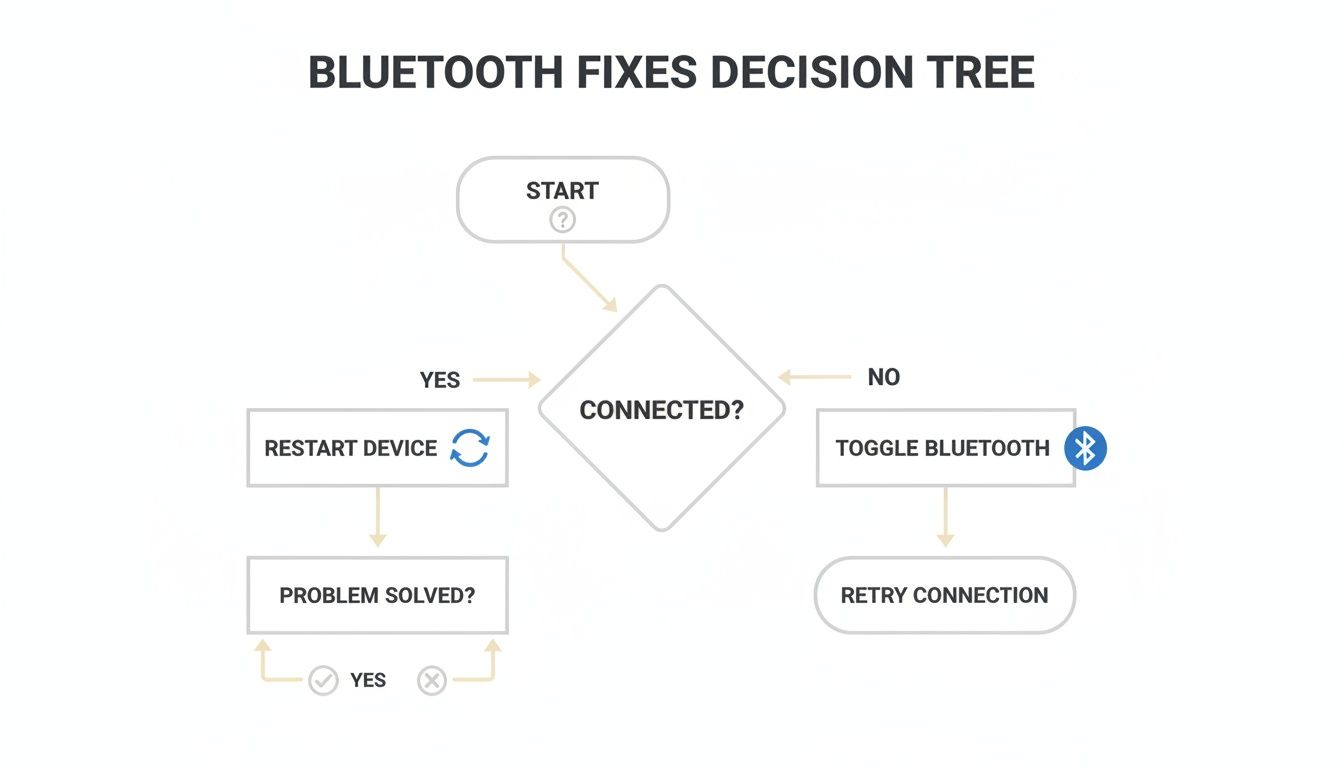
The key takeaway here is to follow a logical sequence. Always start with the least invasive fixes, like a simple reboot, before moving on to re-pairing your devices.
Why Your Bluetooth Connection Is Unstable
Ever feel like your Bluetooth has a mind of its own? One minute your earbuds are delivering crisp, perfect audio, and the next, it’s a choppy, stuttering mess. Figuring out the "why" behind these frustrating bluetooth connection problems is the first step to fixing them, especially when you're using a sophisticated device like a foldable phone.
It's rarely one big failure. More often, it's a mix of small, invisible factors conspiring against your connection. At its core, Bluetooth is just a radio, and like any radio signal, it can be blocked, distorted, or completely drowned out by louder signals. This simple concept is the root of almost every unstable connection. When the airwaves get too crowded, your devices just can't hear each other clearly.
The Crowded Airwaves of the 2.4 GHz Band
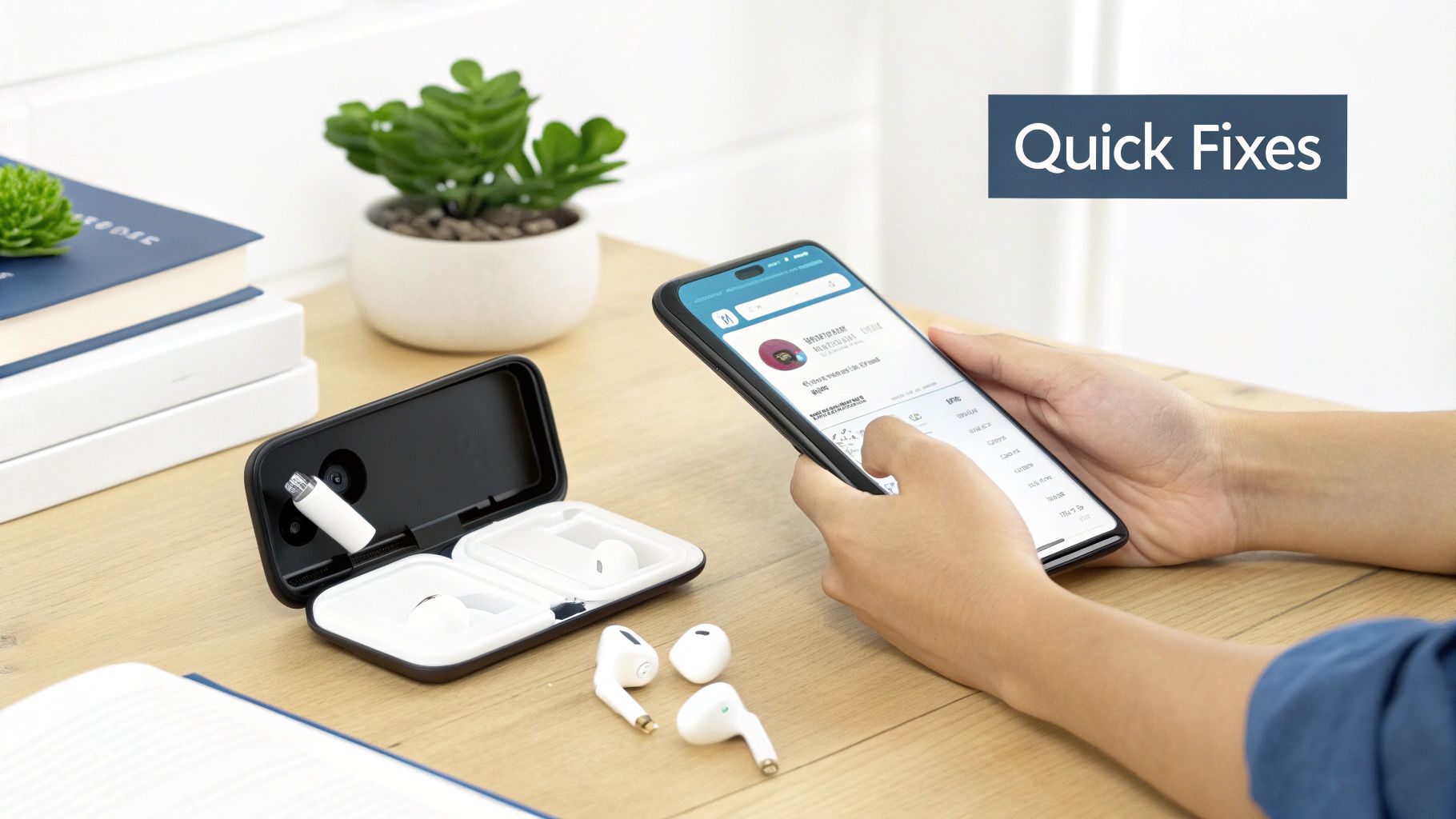
The number one culprit behind your unstable connection is almost always signal interference. Most of the Bluetooth gadgets we use every day operate on the 2.4 GHz frequency band. Think of this slice of the radio spectrum as a busy public highway—it’s unlicensed, free for all, and incredibly crowded.
Your Bluetooth signal isn’t just competing with other Bluetooth devices. It’s fighting for space with a huge range of common household electronics.
Here are just a few things jamming up the 2.4 GHz band:
- Wi-Fi Routers: This is the big one. Most home and public Wi-Fi networks broadcast on this exact frequency, creating a constant blanket of "noise."
- Microwave Ovens: When you're heating up lunch, that microwave is flooding the 2.4 GHz band with powerful radiation, often causing an immediate connection dropout for any nearby devices.
- Cordless Phones: Many older cordless landline phones use this frequency to talk to their base station.
- Smart Home Devices: All those wireless security cameras, smart light bulbs, and even some baby monitors add to the digital traffic jam.
Imagine trying to have a quiet conversation in the middle of a rock concert. That’s exactly what your foldable phone and headphones are up against in a congested Wi-Fi environment. The constant digital chatter makes it nearly impossible to maintain a clear, stable link, which leads directly to those annoying audio stutters and dropouts. This is especially bad in dense places like apartment buildings or busy coffee shops where dozens of Wi-Fi networks are overlapping.
The key takeaway here is that Bluetooth was built for low-power, short-range communication. Its signal is naturally weaker than a Wi-Fi router's, so it's the first thing to get overpowered when the airwaves get contested, causing those persistent connection issues.
Physical Barriers and Obstructions
Beyond invisible signal noise, everyday physical objects can seriously weaken or block your Bluetooth signal. Bluetooth waves are not great at passing through solid materials, and even things that seem insignificant can have a surprisingly big impact.
Just think about where your phone is in relation to your headphones. The human body, which is mostly water, is surprisingly good at absorbing 2.4 GHz radio waves. If you keep your phone in a back pocket while listening to earbuds, your own body can act as a barrier and weaken the signal enough to cause problems.
Some other common physical culprits include:
- Thick Walls: Concrete and brick are especially effective at blocking radio signals.
- Metal Objects: Things like desks, filing cabinets, or even the metal mesh in some office chairs can reflect or absorb Bluetooth waves.
- Bulky Phone Cases: A poorly designed case, especially one with metal parts or thick, dense materials, can muffle your phone's internal Bluetooth antenna.
This is a really important thing to consider if you're using a premium device like a Galaxy Z Fold or Pixel Fold. Investing in a quality case is essential for protection, but choosing one designed to avoid signal interference is just as crucial for reliable day-to-day performance.
Outdated Software and Firmware Chaos
Finally, software plays a massive role in how stable your connection is. An unstable connection isn't always because of something outside your phone; sometimes, the problem is internal. Outdated software, both on your phone and your Bluetooth accessory, can cause all sorts of bluetooth connection problems.
Manufacturers are constantly pushing out updates with bug fixes, security patches, and critical improvements to how Bluetooth works. A mismatch between the software on your phone and the firmware on your headphones, for example, can create compatibility chaos.
One device might be trying to use a newer, more efficient audio codec that the other doesn't fully support, leading to glitches and poor performance. Keeping both your phone's operating system and your accessory’s firmware up to date ensures they're speaking the same language—and that’s essential for a rock-solid connection.
How Physical and Environmental Interference Breaks Your Connection
Bluetooth feels like magic, but those wireless signals are surprisingly fragile. If your headphones are suddenly stuttering or your speaker keeps dropping out, your immediate surroundings are often the silent culprit. These frustrating bluetooth connection problems aren't usually a sign of broken hardware; they're caused by invisible signal traffic and solid objects you’d never suspect.
Think of your Bluetooth signal as a quiet whisper in a crowded room. For that whisper to be heard, it needs a clear, unobstructed path. The moment things get in the way—either physical walls or louder radio signals—that whisper gets lost, and your connection becomes a mess.
Spotting Physical Signal Blockers
The most straightforward type of interference comes from physical objects. Bluetooth relies on low-power radio waves that just don't have the muscle to punch through dense materials. In fact, your own body can be a significant blocker.
Ever notice your connection dies when your phone is in your back pocket and you turn your head? That's because the human body, being mostly water, is fantastic at absorbing 2.4 GHz radio signals. You literally become a human shield between your phone and your earbuds.
Common physical blockers include:
- Concrete and Brick Walls: These are notorious radio wave killers, making it nearly impossible to hold a stable connection between rooms.
- Metal Surfaces: A metal desk, filing cabinet, or even your refrigerator can reflect and scatter Bluetooth signals, causing erratic performance.
- Water: Things like aquariums or even a cluster of large, leafy house plants can absorb and weaken the signal passing through them.
The takeaway here is simple: keeping a clear line of sight between your phone and your accessory is the single best thing you can do for a stable connection.
The Invisible Traffic Jam in the Air
Even more common than a brick wall is radio frequency (RF) interference. Your Bluetooth devices are trying to have a private conversation on a very crowded public highway: the 2.4 GHz band. This unlicensed frequency is a free-for-all, shared by countless everyday electronics.
The biggest offender is almost always your Wi-Fi router. Both Wi-Fi and Bluetooth are constantly shouting in the same airspace. But a Wi-Fi signal is a powerful bullhorn next to Bluetooth's whisper, so it easily drowns out the weaker signal, leading to dropouts and static. Add in microwaves, older cordless phones, and certain smart home gadgets, and you've got a recipe for digital chaos.
This digital congestion is exactly why your headphones might work perfectly in a quiet park but become unusable in a busy airport or coffee shop. You're competing with dozens of overlapping Wi-Fi networks and everyone else's devices.
This has been a challenge since Bluetooth's earliest days. Even with modern standards, interference remains a top concern as the 2.4 GHz spectrum gets more crowded. In lab tests, packet error rates can soar above 40% when a Bluetooth device operates near a powerful Wi-Fi 6 access point, effectively suffocating the signal.
Your Phone Case Could Be the Problem
Finally, let's talk about one of the most overlooked sources of interference—the very thing designed to protect your phone. A case is essential for a premium device like a Galaxy Z Fold or Pixel Fold, but a poorly designed one can act like a suit of armor against your Bluetooth signal.
Cases with unshielded metal components or thick, dense materials can physically block your phone’s internal antenna. The most common offenders, however, are cases that use magnets for mounting or closing a folio cover. If these magnets aren't properly shielded and positioned, their magnetic field can interfere directly with the radio antenna's performance.
If you're dealing with persistent drops, try this simple test: take the case off. If the connection instantly stabilizes, you've found your culprit. When shopping for a new one, it's critical to choose a case engineered to avoid this problem. You can check out our guide on the best magnetic phone cases that blend strong protection with a smart design that won't kill your signal. A good case protects without compromise.
Device-Specific Fixes for Foldable Phones
Foldable phones are incredible pieces of tech, but their unique hardware and software mean they often run into Bluetooth connection problems that you won't see on a standard device. A fix that works perfectly on a regular smartphone might do nothing for the specific quirks of a Samsung Galaxy Z Fold or Google Pixel Fold.
When the basic troubleshooting steps don't cut it, it’s time to dig into the settings that are tailored specifically for your foldable.
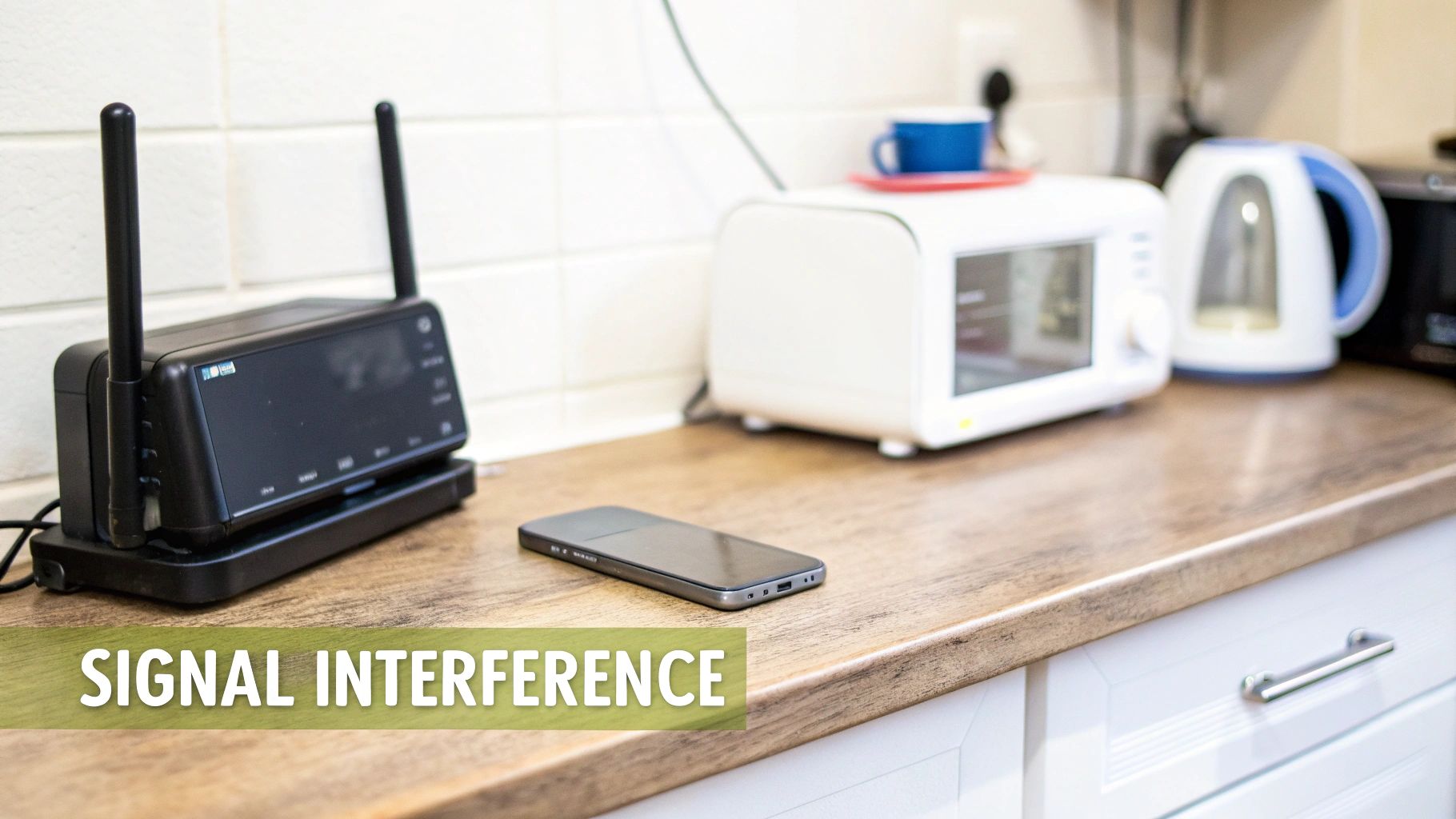
One of the most powerful hidden tools in your arsenal is clearing the Bluetooth cache. This isn't about deleting your paired devices. Instead, it's about wiping the temporary data and configuration files the Bluetooth service runs on. Over time, this cache can get bloated or corrupted, leading to those really stubborn connection drops that a simple reboot just won't fix.
Clearing the Bluetooth Cache on Your Foldable
For both Samsung and Google foldables, the process is pretty similar—you just need to find the system app that manages Bluetooth. This single step can often solve issues like a device that flat-out refuses to pair or keeps disconnecting for no clear reason.
For Samsung Galaxy Z Fold & Z Flip Users:
- Head into Settings > Apps.
- Tap the small filter icon next to "Your apps," flip the switch for Show system apps, and hit OK.
- Scroll down until you find the app simply named Bluetooth. Tap it.
- Go into Storage, and at the very bottom, tap Clear cache.
For Google Pixel Fold Users:
- Open Settings > Apps > See all apps.
- Tap the three-dot menu in the top-right and choose Show system.
- Scroll to find and select the Bluetooth app.
- Choose Storage & cache, then tap Clear cache.
After you’ve cleared the cache, give your phone a quick restart. This ensures the Bluetooth service starts up completely fresh and is a surprisingly effective way to kill off those lingering problems.
Resetting Network Settings the Smart Way
If clearing the cache didn’t do the trick, the next logical step is a full network settings reset. It's a powerful move that wipes all your phone's network configurations—including Wi-Fi, mobile data, and Bluetooth—and restores them to factory defaults. This is a fantastic way to kill any deep-seated software glitches causing your connection headaches.
A lot of people hesitate here, worried about losing all their saved Wi-Fi passwords. The good news? If you use a Google or Samsung account to back up your phone, your Wi-Fi networks and passwords are very likely saved to the cloud. The next time you connect, your phone should pull the password right from your backup.
Important Takeaway: Before you hit reset, just double-check that your phone is actively syncing with your Google or Samsung account. It’ll save you the massive headache of re-entering dozens of Wi-Fi passwords later.
To do it, go to Settings > General Management > Reset > Reset network settings. This will unpair all your Bluetooth devices, so you'll need to re-pair everything one by one. Think of this as the final software step before you even have to consider a full factory reset.
Fine-Tuning Audio Codecs on Samsung Devices
Experiencing audio-specific issues, like stuttering or just plain bad sound quality with your headphones? Samsung's One UI has a great tool for this, but it’s buried in the Developer options.
Different headphones support various Bluetooth audio codecs (like SBC, AAC, aptX, or LDAC), which are basically algorithms for compressing and decompressing audio. A mismatch between your phone and your headphones can cause all sorts of problems.
First, you’ll need to unlock Developer options.
- Go to Settings > About phone > Software information.
- Tap on the Build number seven times in a row. You'll see a little message confirming you're now a developer.
Now, a new Developer options menu will show up in your main Settings list. Head in there and you'll find a "Bluetooth Audio Codec" setting. If your headphones are stuttering on the default codec, you can manually force a different one. A great fallback is SBC, which is universally compatible. While it doesn't offer the highest audio fidelity, its stability can be a lifesaver for a choppy connection.
This trick is also handy for accessories like keyboards, where data integrity matters more than audio quality. To learn more about how these accessories work, you can check out our detailed guide on folding Bluetooth keyboards.
Advanced Diagnostic and Troubleshooting Techniques
When a simple reboot and re-pairing don't fix your Bluetooth connection problems, it’s time to dig a little deeper. We need to move beyond the quick fixes and start thinking like a detective to figure out what’s really going on inside your foldable phone. These next steps will help you isolate the root cause, whether it's a rogue app, outdated accessory firmware, or a more stubborn system-level glitch.
Before you jump to the conclusion that your hardware is faulty, running through these diagnostics can often pinpoint the real culprit, saving you a trip to the repair shop.
Isolating the Problem with Safe Mode
Did your Bluetooth connection suddenly become unstable right after you installed a new app? It's a classic scenario, and a third-party app is often the source of the conflict. Safe Mode is your best friend here. It’s an essential diagnostic tool that boots your phone with all third-party apps disabled, letting you see if the core Android system is working correctly on its own.
If your Bluetooth works flawlessly in Safe Mode, you’ve found your answer: a recently installed app is almost certainly to blame.
- How to Enter Safe Mode on Samsung Foldables: Press and hold the power button to see the power-off menu. Then, press and hold the "Power off" icon on the screen until it changes to a "Safe mode" icon. Tap it, and your phone will reboot.
- How to Enter Safe Mode on Google Pixel Fold: Bring up the power menu by pressing and holding the power button. Now, press and hold the "Restart" option on the screen until a "Reboot to safe mode" prompt appears. Tap OK.
Once you’ve confirmed the issue is gone in Safe Mode, the next step is to start uninstalling your most recent apps one by one. Focus on anything that might manage audio, connections, or system performance. Reboot your phone normally after each uninstallation to check if the problem has vanished.
Updating Your Accessory's Firmware
It’s easy to point the finger at your phone when a connection fails, but sometimes the issue lies with the accessory itself. The firmware on your headphones, speakers, or car stereo is the embedded software that tells it how to function—including how it talks to your phone over Bluetooth. Outdated firmware is a surprisingly common cause of persistent connection issues that many people overlook.
Manufacturers regularly release firmware updates to:
- Squash known bugs and connectivity glitches.
- Improve compatibility with new phone software.
- Boost performance and sometimes even add new features.
To check for an update, you’ll need the accessory’s companion app (like Galaxy Wearable for Samsung Buds or Sony Headphones Connect for Sony headphones). Just open the app, connect your device, and look for a "Firmware update" or "Software update" section in the settings. Applying an update can be the instant fix you’ve been looking for.
A critical takeaway is that your phone and accessories are a team. If one team member is running on outdated instructions (firmware), the whole communication process can break down. Keeping everything updated is non-negotiable for a stable experience.
Understanding Deeper System Conflicts
Sometimes the problem is more complex than a single app or old firmware. It might be a deeper conflict within the Android system, often caused by messy software updates or accumulated cache data. This is especially true in places with a lot of wireless traffic.
A major headache for Bluetooth is congestion in the 2.4 GHz band, which modern Wi-Fi 6 routers and smart home devices only make worse. This can seriously impact connection reliability in busy homes and offices. In fact, research shows that powerful Wi-Fi signals can cause Bluetooth packet error rates to soar past 40%, essentially starving the connection. This directly affects professionals in warehouses or on job sites using their Galaxy Z Fold near Wi-Fi scanners and Zigbee sensors, leading to frustrating audio drops. You can explore more about these market dynamics in this detailed report from Mordor Intelligence.
Clearing your device's cache partition (a more advanced move than just clearing an app's cache) can sometimes resolve these deeper conflicts. The process varies by device and usually requires booting into a special recovery menu. While it’s a powerful tool, it’s also more technical, so be sure to research the exact steps for your specific foldable model. Managing these systems can also drain your battery, so it's always smart to learn how to extend phone battery life to keep things running smoothly.
When It's Time to Call in the Pros
So, you've done it all. You’ve rebooted, re-paired every device, reset your network settings, and even ventured into Safe Mode, but your Bluetooth connection problems are still there. If you've reached this point, you're likely staring down a hardware failure, not just a stubborn software glitch.
Continuing to poke around in the settings is probably a waste of your valuable time. Knowing when to stop is a crucial skill in any troubleshooting process.
There are a couple of major red flags that scream "hardware issue." If your phone’s Bluetooth toggle is completely greyed out and refuses to turn on, that's a bad sign. Another is if your phone can't discover any devices at all, even when you're in a perfect, interference-free room. These symptoms strongly point to a faulty internal radio, and no amount of software tweaking is going to fix that.
Preparing for a Support Call
Before you dial up Samsung or Google support, take a few minutes to gather the right information. Doing this prep work will make the entire process faster and way less frustrating. It helps the support agent get straight to the point instead of making you repeat steps you've already tried.
Take a moment to document the exact troubleshooting steps you’ve already taken. This prevents the support agent from walking you through the same basic fixes and helps them escalate your case to a hardware diagnostic more quickly.
Have this information ready to go:
- Your Phone's Model and Serial Number: You can find this in Settings > About phone.
- The Specific Software Version: This is also listed under About phone > Software information.
- Examples of Accessories: Make a quick list of the specific models of headphones, speakers, or other gear that failed to connect.
Walking into that conversation organized shows you’ve done your homework. It immediately shifts the focus toward a potential hardware replacement or repair, saving everyone a lot of time.
Frequently Asked Questions
Let's tackle a few common, and sometimes odd, scenarios we hear about all the time. If the main guide didn't quite hit your specific issue, you'll probably find your answer here.
Why Does My Bluetooth Disconnect When I Fold My Phone?
This is a classic foldable phone problem, and it's almost always tied to the phone trying to be a little too smart with its battery. When you close the phone, its software aggressively puts background apps to sleep to save power, and your Bluetooth connection often gets caught in the crossfire.
The fix is usually buried in your battery settings. Look for menus like ‘App power management’ or ‘Adaptive battery.’ Your goal is to find the list of sleeping or restricted apps and make sure you exempt the main Bluetooth service and any related apps (like Galaxy Wearable for your watch). If that doesn't solve it, a buggy software update could be the culprit, so it's always a good idea to check that you're running the latest OS version.
Can a Magnetic Phone Case Really Cause Problems?
Absolutely. It’s one of the first things I ask people to check. A case with powerful or poorly placed magnets can mess directly with your phone's internal antennas, creating a weak signal that leads to constant, frustrating dropouts. If you're pulling your hair out over bluetooth connection problems, this is an easy one to test.
The simplest diagnostic you can run is to just take the case off. If your Bluetooth suddenly becomes stable and reliable, you've found your problem. It's a dead giveaway that you need a case specifically engineered to avoid signal interference while still protecting your phone.
How Do I Stop Bluetooth Audio Stuttering in My Car?
Car audio stutter is a frustrating one. It's almost always caused by one of two things: signal interference inside the car or a codec mismatch between your phone and your car's infotainment system. Think about it—a modern car is a crowded space for wireless signals.
First, try the old "turn it off and on again" trick. Unpair your phone completely from your car, then repair it to create a fresh handshake. If the stuttering comes back, dig a little deeper:
- Turn off other Bluetooth devices in your car for a minute. Your smartwatch, your passenger's phone—anything that could be competing for airtime.
- Move your phone closer to the car's main head unit or screen. Sometimes a clear line of sight is all it takes.
- Dive into your phone’s Bluetooth settings for the car connection. Look for an 'Audio Codec' option. If it's on a high-quality setting like AAC or aptX, try switching it to the more basic and universally supported SBC codec. It might not be audiophile quality, but it's often far more stable.
At FoldifyCase, we design premium cases and accessories that protect your foldable phone without compromising performance. Find the perfect case that keeps your connection strong and your device safe at https://www.foldifycase.com.