

Running Out of Cell Phone Storage? A Guide for Foldable Phone Owners
Think of your phone's storage as a digital filing cabinet. It's where your device permanently keeps everything—the operating system, all your apps, and every photo and video you've ever taken. This isn't the same as RAM, which is just temporary memory for active tasks. When you get that dreaded "storage full" notification, it means your digital cabinet is officially overflowing.
Why Your Foldable Phone Storage Fills Up So Fast
Ever bought a brand new foldable with a massive 256GB or 512GB of space, only to feel cramped just a few months later? It’s a surprisingly common headache. The easiest way to picture it is to think of your phone's storage as a high-tech backpack.
The internal storage is the main compartment, holding all your essential gear like apps and system files. Cloud storage is like a connected locker you can access anytime, perfect for stashing things you don't need right this second. And RAM? That's your immediate workspace—the more you have, the more you can juggle at once without everything grinding to a halt.
For those of us with foldable phones, those big, beautiful screens and powerful cameras are a double-edged sword. They practically beg you to shoot high-resolution photos and brilliant 4K videos, which just happen to be the biggest storage hogs out there. And our modern habits only make the problem worse.
The Modern Usage Dilemma
The demands we put on our phones today are insane compared to just a few years ago. You can see this shift just by looking at how much storage new phones come with. Between 2014 and 2015, the global average smartphone storage capacity skyrocketed by an incredible 78% in a single year. During that same time, over 55% of premium phones sold came with 64GB or more, making larger capacities the new normal. You can read more about this historic storage shift and how it changed the market.
This trend hasn't slowed down, and it's driven by a few key culprits:
- High-Resolution Media: Those gorgeous foldable screens are perfect for watching 4K videos and looking at ultra-detailed photos. The catch? These files can eat up gigabytes of space in just a few minutes.
- App Bloat: Many apps, especially social media and streaming services, get bigger with every update. They also store huge amounts of cached data to help content load faster, quietly gobbling up your precious space.
- Offline Content: Who doesn't download an entire season of a show from Netflix or a massive playlist from Spotify for a flight? This convenience puts a unique and heavy strain on your device's built-in storage.
How to Check and Understand Your Current Storage Usage
Before you can start reclaiming precious gigabytes, you first need a clear map of what’s eating up your phone's storage. Think of it like a pre-flight checklist; you wouldn't take off without knowing your fuel levels. Getting this report is the first step toward smart storage management, turning a confusing problem into an actionable plan.
The process is refreshingly simple on most modern Android foldables, including the latest from Samsung and Google. While the exact menu names might differ slightly, the path to get there is nearly identical.
Finding Your Storage Report on Android
Getting to your phone's storage analysis tool takes just a few quick taps. It’s designed to give you an immediate, high-level overview of your device's digital health.
- Open the Settings app on your phone.
- Scroll down and tap on Battery and device care (for Samsung phones) or a similar option like Storage (on a Google Pixel).
- Select the Storage option from the menu.
This screen is your command center. You’ll be greeted by a color-coded bar chart that visually breaks down what’s using your space, giving you an at-a-glance understanding before you even dive into the numbers.
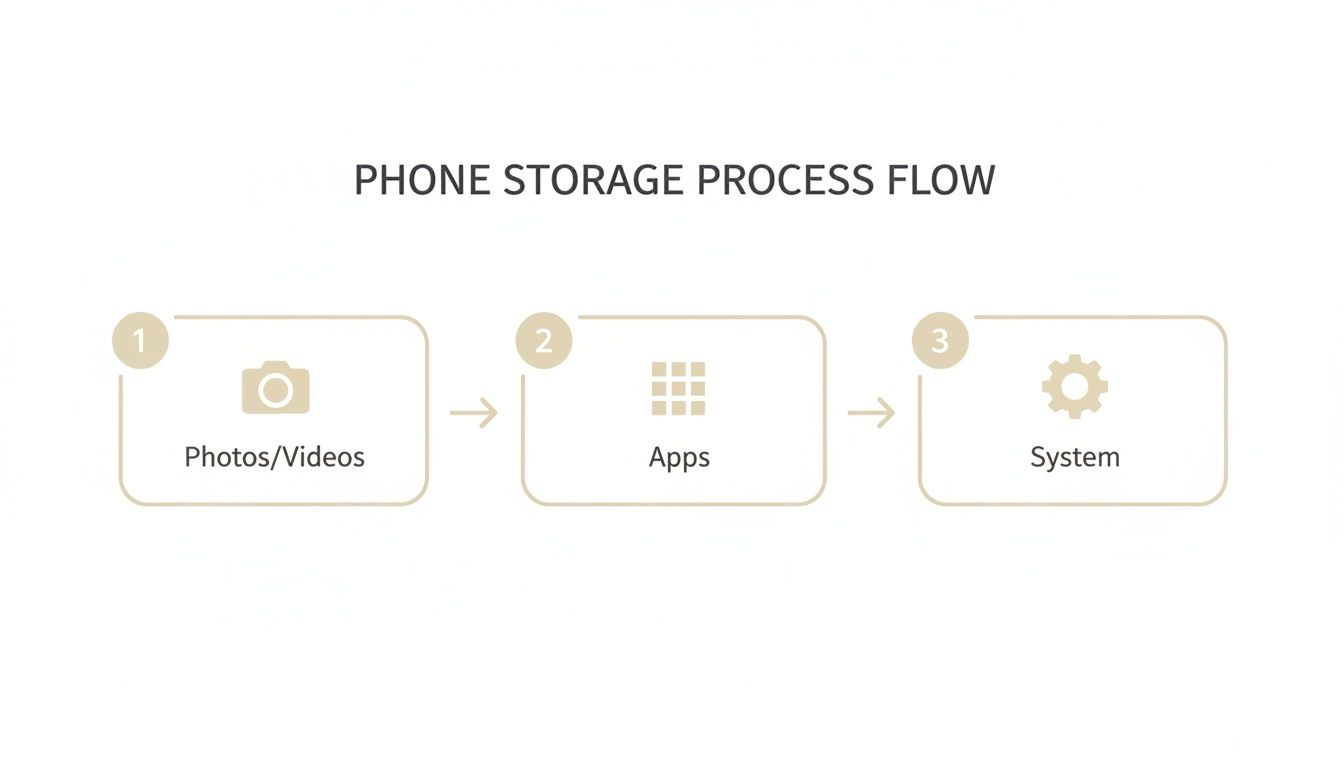
This visual flow shows how personal media like photos and videos, along with all your apps, feed into the total storage used by the system itself.
Decoding the Categories
Once you're looking at the report, you'll see your storage split into several categories. Understanding what each one really means is the key to making smart decisions about what to keep and what to toss.
To make this easier, here’s a quick reference guide to help you translate that report into plain English.
| Storage Category | What It Contains | Typical Size Impact |
|---|---|---|
| Images & Videos | Every photo, video, and screenshot you've captured or downloaded. | High. This is often the biggest space hog, especially on phones with great cameras. |
| Apps | All installed applications and their associated data. | High. Some games and social media apps can easily exceed 5-10GB each. |
| System | The core Android operating system and essential files your phone needs to run. | Fixed & Large. Usually 20-30GB or more. You can't delete these. |
| Other / Misc. | A catch-all for temporary files, system cache, and data not in other categories. | Variable. Can be small or surprisingly large, making it a good target for cleanup. |
This breakdown demystifies the storage report, turning a single "Storage Full" warning into a clear roadmap. You can now pinpoint exactly where your gigabytes have gone and create a targeted strategy to get them back.
Unmasking the Real Storage Hogs
It’s easy to blame your ever-growing camera roll when that “Storage Full” warning pops up. But the truth is, the most aggressive storage vampires are usually hiding right under your nose. They quietly chew through gigabytes on your foldable phone, working so sneakily you won't even notice until it's too late.
The biggest offenders are almost always the apps you use every single day. Social media and streaming services, in particular, build up massive hidden caches to give you that smooth, buffer-free experience. Every time you doomscroll through TikTok or browse Instagram, your phone is saving countless video thumbnails and temporary files that can quickly swell into gigabytes for each app.
The Sneaky Culprits Eating Your Space
While one photo seems harmless, it’s the quiet accumulation of hidden files that does the real damage. Think of it like a dripping faucet—a single drop is nothing, but leave it alone for a week, and you’ve got a flood.
Your phone’s storage works the same way. It's rarely one big thing; it's a bunch of smaller culprits working together:
- Streaming App Caches: Apps like YouTube, TikTok, and Instagram hoard enormous amounts of temporary data just to load content a split-second faster.
- Offline Downloads: That entire season of a show you saved on Netflix for a flight or a 10-hour playlist from Spotify for a road trip are major space occupiers.
- Massive Mobile Games: Modern games with console-quality graphics can demand 10-20GB of space each, and that number only grows with every update and save file.
- The Forgotten Downloads Folder: Let’s be honest, your 'Downloads' folder is a digital graveyard of old PDFs, forgotten memes, and installation files you used once, months ago.
This slow, creeping data growth is often called “app bloat.” It’s how an app’s footprint gets bigger and bigger, not just from its initial download but from every update it installs and every piece of data it saves while you use it.
A single minute of 4K video shot at 60fps eats up about 400MB of space. That means a quick 10-minute clip can consume a massive 4GB. When you realize the average phone has dozens of apps taking up 40-60GB before you even snap a single photo, it’s easy to see why high-capacity storage is now a must-have. You can discover more insights about smartphone storage trends on topdisk.com.
How It All Adds Up
This isn’t just about one app getting out of hand. It’s the combined weight of dozens of apps all saving temporary files, user data, and downloaded content at the same time. Each one takes its own little bite out of your storage, creating a perfect storm that can bring your premium foldable phone to a grinding halt.
By learning to spot these storage hogs early, you can take back control before they take over. The first step is admitting that the obvious suspects—your photos—are often just one piece of a much bigger, more complicated puzzle. This mindset shift changes you from someone who frantically deletes files in a panic to someone who proactively manages their digital space.
Actionable Strategies to Reclaim Your Phone's Storage
Alright, you’ve figured out what’s eating up all your space. Now it’s time to take it back. This isn’t about a panicked scramble to delete precious photos; it's about making smart, targeted moves that give you breathing room right away.
These aren't just quick fixes. They're proven strategies that will free up gigabytes now and give you the skills to keep your phone feeling fresh and fast for the long haul. We'll start with the easy wins first and then move on to the power moves.
Start With Smart App Management
Your apps are probably the biggest storage hogs, but there’s a right and a wrong way to deal with them. The knee-jerk reaction is to just start uninstalling things you think you might need later. A much better approach is to focus on the digital clutter they build up over time—the cache.
Think of an app's cache as its temporary workspace. It's full of leftover files like image thumbnails and pre-loaded content that make it feel faster. Clearing it out doesn't delete your logins or personal data, but it can instantly reclaim hundreds of megabytes (or even gigabytes) from a single app.
For a deeper clean, your phone already has the best tools for the job. Modern Android phones, especially Samsung foldables, have a powerful "Device Care" feature built right in.
- Head over to Settings > Device Care > Storage.
- Look for options that scan for duplicate files, large files, and unused apps.
- Let your phone do the heavy lifting. It will find exactly what can be safely removed, which is way faster and more reliable than hunting for files on your own.
Beyond the usual suspects, remember that other data can pile up. For instance, effectively managing voicemails is an often-overlooked area where you can recover a surprising amount of space.
Optimize Your Media Wisely
Your photo and video library is priceless, but it doesn't all need to live on your phone 24/7. Moving your media to the cloud is easily the most effective long-term strategy for managing your phone’s storage. Services like Google Photos or Amazon Photos will automatically back everything up in full quality.
Once your memories are safe in the cloud, you can confidently use the "Free up space" feature in the app. This is a brilliant tool—it removes the huge, high-resolution files from your device but leaves behind small, accessible thumbnails. You can still see your entire library and re-download anything you need in a flash. It’s the best of both worlds.
Pro Tip: One simple tweak in your camera settings can save you gigabytes. Unless you’re a professional videographer, switch your video recording from 4K down to 1080p. For the everyday clips you share on social media, you won't notice the difference in quality, but your storage will thank you.
Getting ahead of this is more important than ever. Some market analyses are warning of a potential global memory shortage, which could make high-capacity phones more expensive. Since memory already accounts for 15-20% of a mid-range phone's cost, future price hikes might lead manufacturers to be less generous with built-in storage.
Leverage External and Cloud Storage
For those massive files or when you just want a complete backup, a portable external SSD is your best friend. These things are lightning-fast and can copy your entire photo library in just a few minutes, giving you a secure, physical copy of your most important data.
Ultimately, the best approach is a hybrid one. Use your phone's internal storage for apps and essential files you need daily. Let the cloud handle your ever-growing archive of photos and videos. And use an external drive for those periodic, deep backups for total peace of mind.
For those of us with foldable phones, mastering this balance is key to keeping our devices snappy and responsive. If you want to dive even deeper, you can also learn how to maximize your Galaxy Z Fold 4 with some device-specific tricks.
Advanced Storage Tips for Foldable Phone Power Users
Let's be honest: if you own a foldable phone, you're not a casual user. You bought a Galaxy Z Fold or Pixel Fold because you wanted a productivity powerhouse in your pocket. But that power comes with its own unique set of challenges, especially when it comes to cell phone storage.
The beautiful, large screens invite you to do more—run apps side-by-side, edit documents on the fly, and capture stunning high-resolution media. This kind of intense usage generates temporary files and swells app caches way faster than on a typical smartphone. To keep your device running smoothly, you need to think a little differently about storage management and stay ahead of that dreaded 'Storage Full' notification.
Master Multitasking and Cache Management
One of the best parts of a foldable is running two apps at once. The catch? You're also creating double the cached data in a single session. Social media, news apps, and browsers are notorious for this, constantly storing temporary files to make things load faster next time. With heavy multitasking, this data builds up in a hurry.
Don't wait until your phone starts to lag. Make it a habit to periodically clear out this clutter. While you can clear the cache for individual apps, sometimes the system itself accumulates junk files. For a deeper, system-level cleanup that won't touch your personal data, you can learn more about how to wipe the cache partition on your Android device. This is a great trick for maintaining peak performance.
As a power user, think of cache management not as a chore, but as routine maintenance. Just like closing unused browser tabs on a laptop improves its speed, regularly clearing your phone's cache keeps your multitasking workflow snappy and responsive, preventing slowdowns before they start.
Adopt Pro-Grade File Habits
Your foldable's camera is a beast, capable of shooting massive 8K video or incredibly detailed RAW photos. These files look amazing, but they are absolute storage killers. To keep them from bogging down your device, you need a smart workflow that gets them off your phone quickly.
- Implement a "Shoot and Transfer" Rule: As soon as you finish a photo or video session, make it a habit to move the big files to an external SSD or a cloud drive. Don't let them sit on your phone's internal storage for days.
- Use a Dedicated "Work" Folder: Create a specific folder just for active projects. Once you're done with a project, archive the entire folder to an external source. This keeps your internal storage free for what you're working on right now.
Prepare for the Unexpected
The hinge on a foldable is a marvel of engineering, but it's also its most complex part. If your phone ever needs a repair, you could be without it for days or even weeks. And let's face it, data loss is always a possibility during servicing.
Before you ever send your device in, a complete, comprehensive backup is non-negotiable. I recommend a two-pronged approach: use cloud services for daily syncing of your most important stuff, and perform a full local backup to a PC or external drive for total security. This way, even if your phone is wiped or replaced, your entire digital life remains safe and sound.
Common Questions About Cell Phone Storage Answered
Let's be honest, figuring out phone storage can feel a bit confusing, especially when you're dealing with a powerhouse foldable device. We get a lot of questions from users just like you, so we've put together some clear, straightforward answers to the most common ones.
What Is the Difference Between RAM and Phone Storage
This is a fantastic question. The easiest way to think about it is to imagine your phone is a workshop.
RAM is your workbench. It’s the temporary space where you actively work on things. When you open an app, it goes on the workbench. With 8GB or 12GB of RAM, you have a huge workbench, letting you spread out lots of projects (apps) at once and switch between them instantly without anything slowing down.
Phone Storage is your workshop's filing cabinet. This is where you keep everything long-term—your tools (apps), your finished projects (photos and videos), and your instruction manuals (the operating system). When you see a "storage full" message with numbers like 256GB or 512GB, it means your filing cabinet is overflowing, not your workbench.
If I Delete Photos From My Gallery Will They Stay in the Cloud
This is a critical one, and the answer is: it depends entirely on how you delete them.
If you use a specific feature inside an app like Google Photos called "Free up space," you're in safe hands. That tool is designed to check that your photo is safely backed up to the cloud first, and only then does it remove the local copy from your phone. It's the smart way to do it.
However, if you just open your phone’s regular gallery app and start deleting pictures manually, there’s a very high chance that action will sync with your cloud account and delete the photo there, too. Poof, gone forever. Always be sure your backup is complete before you start cleaning house.
The safest bet is to always use the built-in cleanup tools inside your cloud storage app. They are specifically designed to verify a successful backup before suggesting you remove the local file, which is the best way to prevent accidentally losing a precious memory for good.
Why Is My System Storage So Large and Can I Shrink It
Seeing "System" take up a huge chunk of your storage can be alarming, but it's completely normal. Think of it as the foundation of your house—you can't remove it without the whole thing collapsing.
This System category contains the entire Android operating system, plus all the specialized software that makes your foldable phone work its magic, like the complex code for the dual screens or DeX mode on Samsung devices.
You can't really delete these core files or shrink them down. But you can stop them from bloating over time. The best thing to do is keep your phone's software updated, as new updates often clean out old, unnecessary system files. A periodic cache clear can also help keep things tidy.
If your phone is feeling slow for other reasons, some of our tips on how to extend your phone's battery life might also help improve performance.
Is It Better to Buy More Storage or Use the Cloud
Since modern foldables like the Galaxy Z Fold and Google Pixel Fold don't have microSD card slots anymore, this is a decision you have to make at the time of purchase.
Our advice? It's almost always better to buy the model with more internal storage from the get-go. On-device storage is incredibly fast and reliable, which is what you need for running apps and the operating system smoothly.
Cloud storage is the perfect partner for your internal storage—it's brilliant for offloading photos, videos, and big documents. But it's not a true substitute for having enough fast, local storage for your day-to-day use.
If you've tried all the cleanup tricks and your phone is still bursting at the seams, it might be time for an upgrade. When that day comes, make sure you securely dispose of old cell phones to keep your personal data safe.
At FoldifyCase, we understand the unique demands of foldable phones. Explore our collection of premium cases and accessories designed to protect and enhance your device. Visit https://www.foldifycase.com to find the perfect fit for your foldable.